
Two reliability pillars
- Background survival — Recents may kill the recorder (OEM-dependent). Safe default: keep the app open for important recordings. Optional verify uses a single-app VoiceVault swipe only.
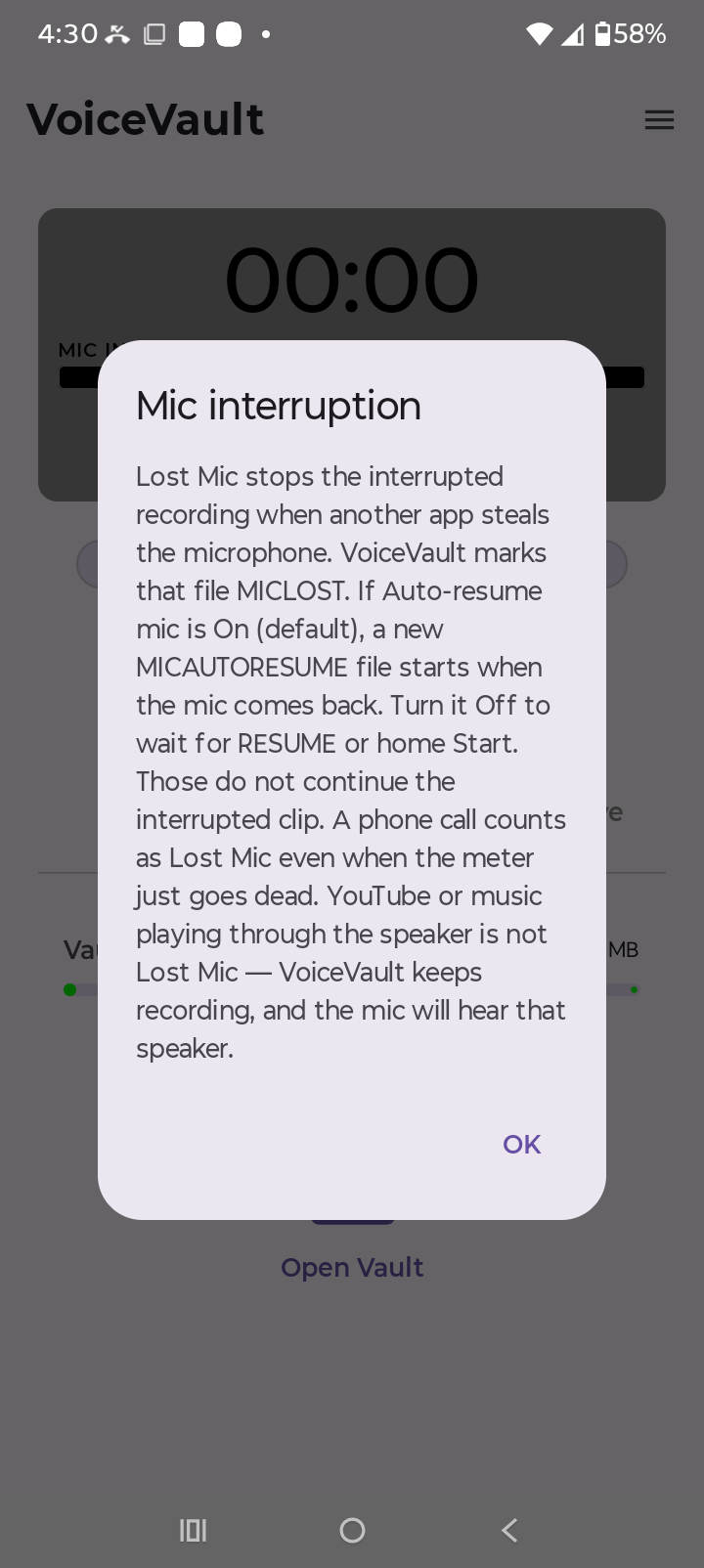
- Mic interruption (this page) — Another app taking the mic always stops the current recording; VoiceVault surfaces Lost Mic + RESUME.
Onboarding: short teach for each. No required labs. Mic training ends with I understand — Lost Mic stops the current recording. After that, ☰ shows a status summary.
Playback is not Lost Mic
Playing a video or song (YouTube, music, a podcast) does not take the microphone. VoiceVault keeps recording. Those apps use the speaker, not the mic.
The phone mic still hears whatever comes out of the speaker. Loud playback will sit on the current recording with your voice. Turn the speaker down, or use earbuds / a headset, if you need a cleaner recording. Lower volume helps; it does not erase speaker sound.
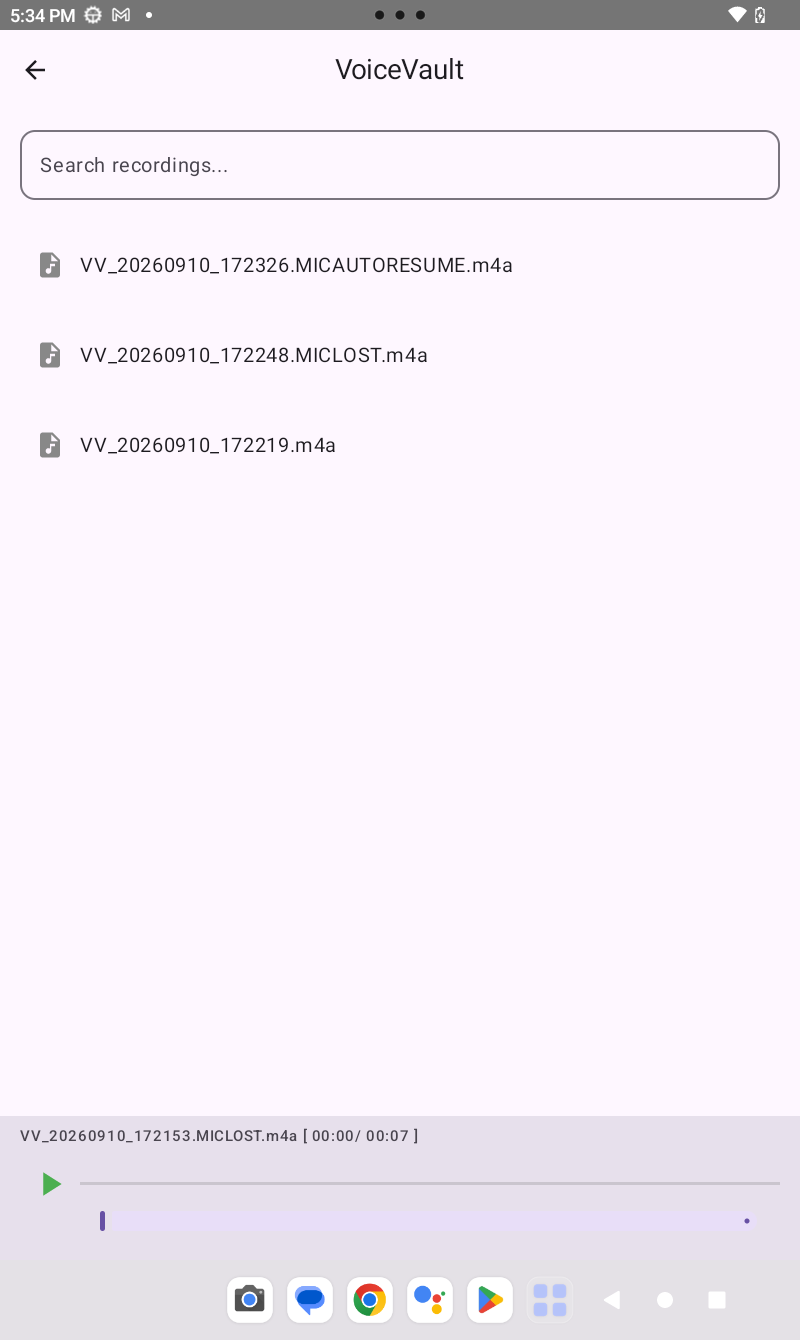
Camera video, another recorder, Assistant, or a phone call can steal or mute the mic. YouTube playing a video does not. A call that only kills the meter still counts as Lost Mic — VoiceVault stops and marks MICLOST so you do not get a silent hole in the same file. After hangup, Auto-resume can start MICAUTORESUME.
What happens when the mic is stolen
- You are recording in VoiceVault.
- Another app takes the microphone.
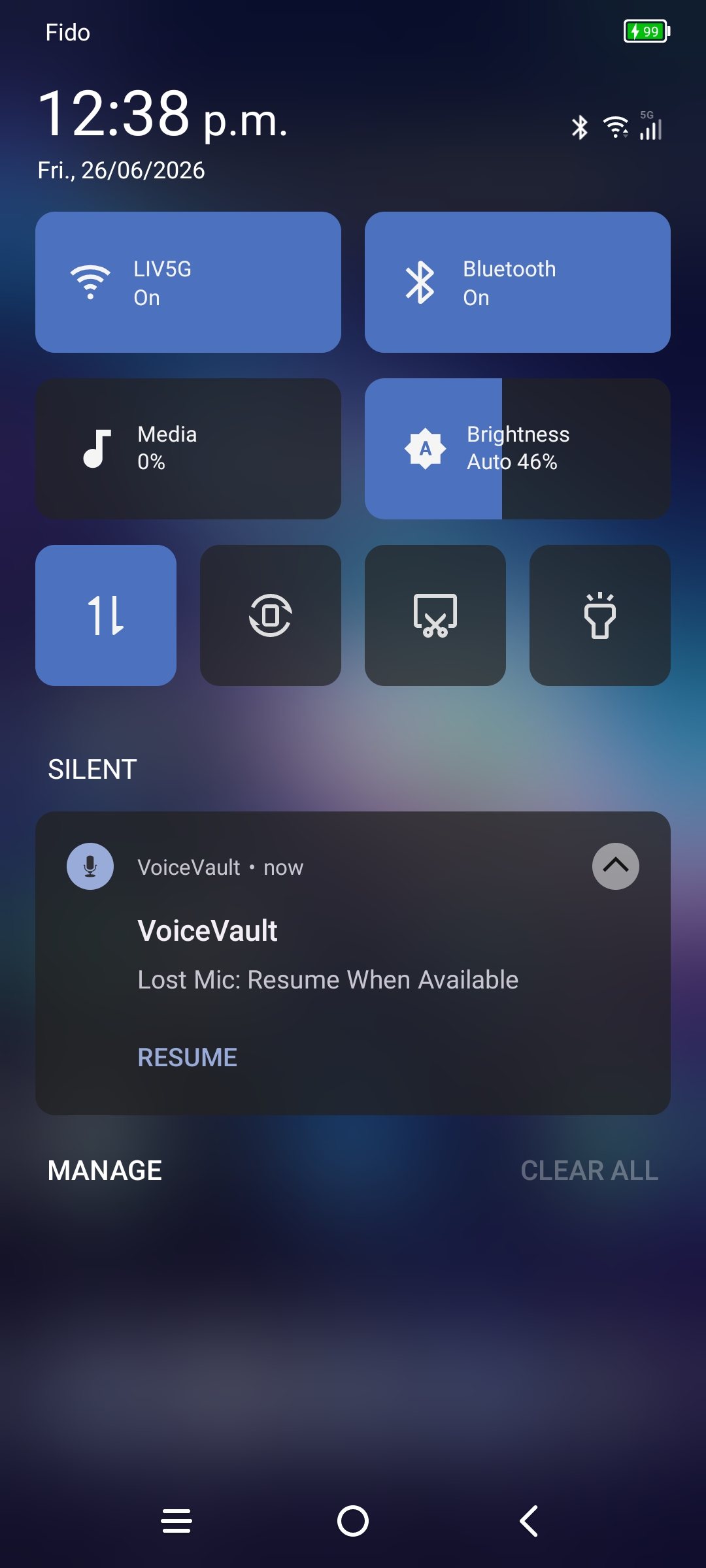
- VoiceVault stops, saves what it has, marks the file, and shows Lost Mic + RESUME.
- When the mic is free, RESUME or home Record starts a new recording — not a stitch onto the old file.
What you should do
- Read the notification.
- Check the vault flagged file if you need the audio so far.
- When the mic is free, RESUME or record again from home.
Optional experiment (website only — not required)
Curious users can later start a short recording and interrupt with Camera video, a call, or Assistant. Do not use YouTube playback for that experiment — playback is not a mic steal. Do not use Recents swipe — that is background survival, and Clear all vs single-app swipe are not interchangeable.
← Recording guide · Background survival · Onboarding · VoiceVault overview