Open the vault
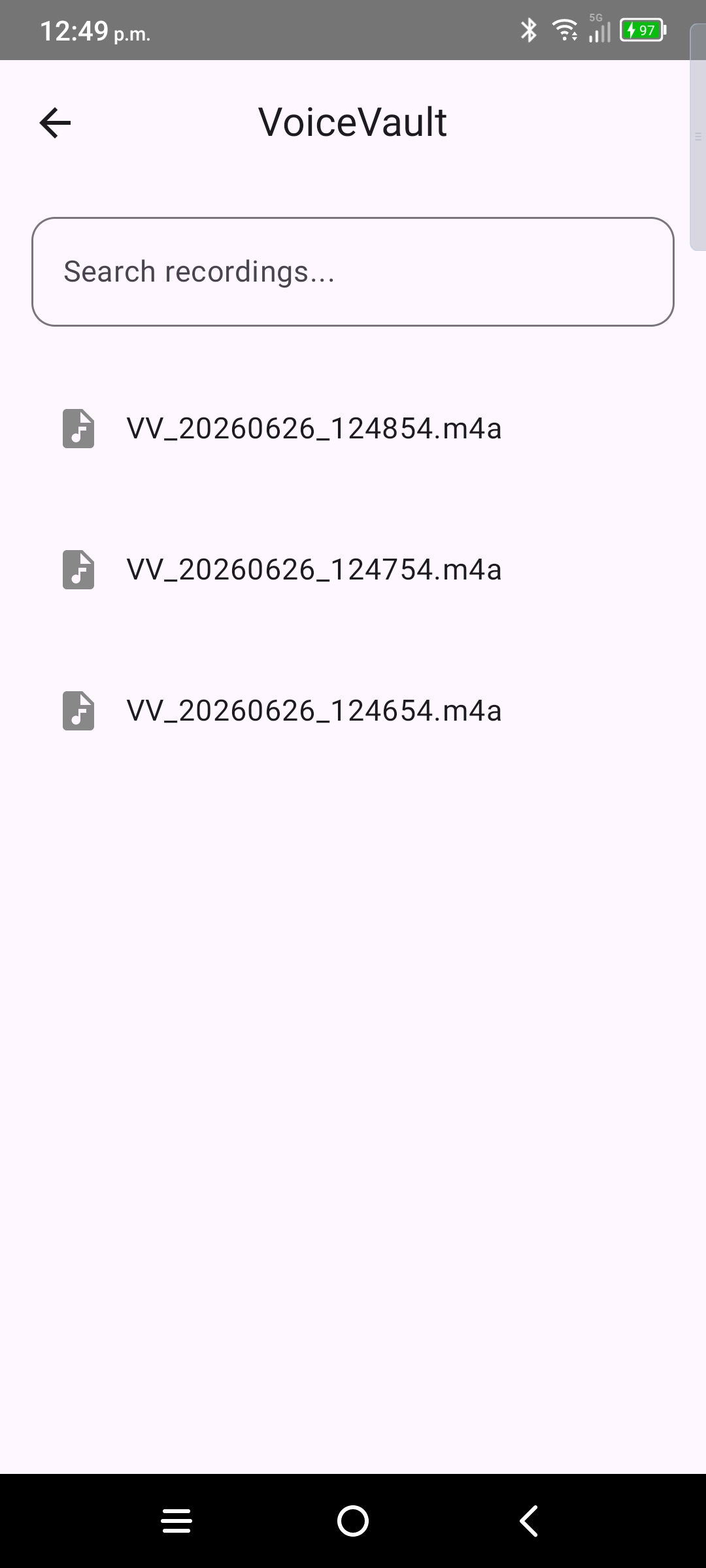
From the home screen, tap the vault control. Pull down to refresh the file list. Back returns to the recorder without losing your place in a playing clip — playback position is saved.
Playback
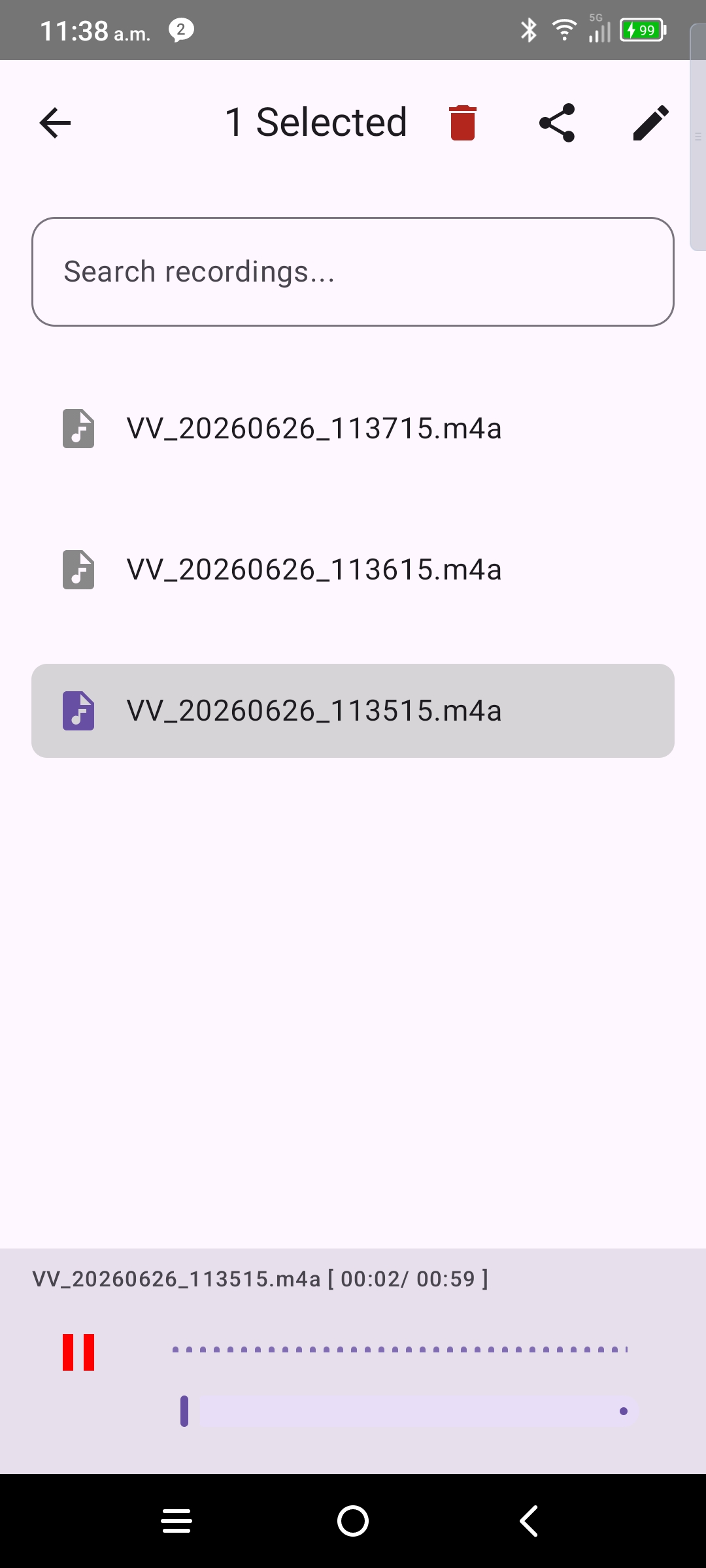
- Tap a row to play or pause.
- Long clips resume where you stopped last time.
- A waveform visualizes level while audio plays.
Search
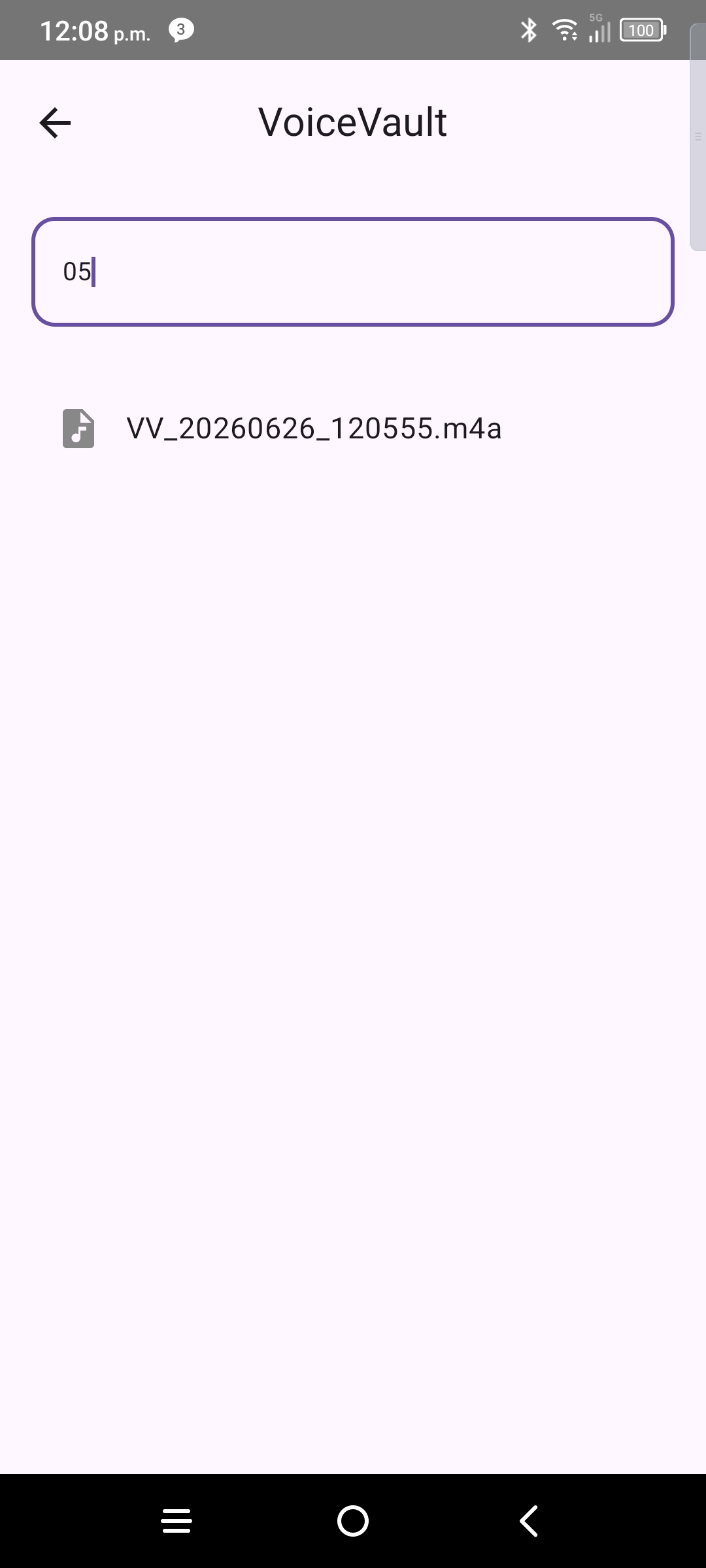
Use the search field to filter filenames live. Clear search or press back to exit manage mode and return to the full list.
Rename, share, delete
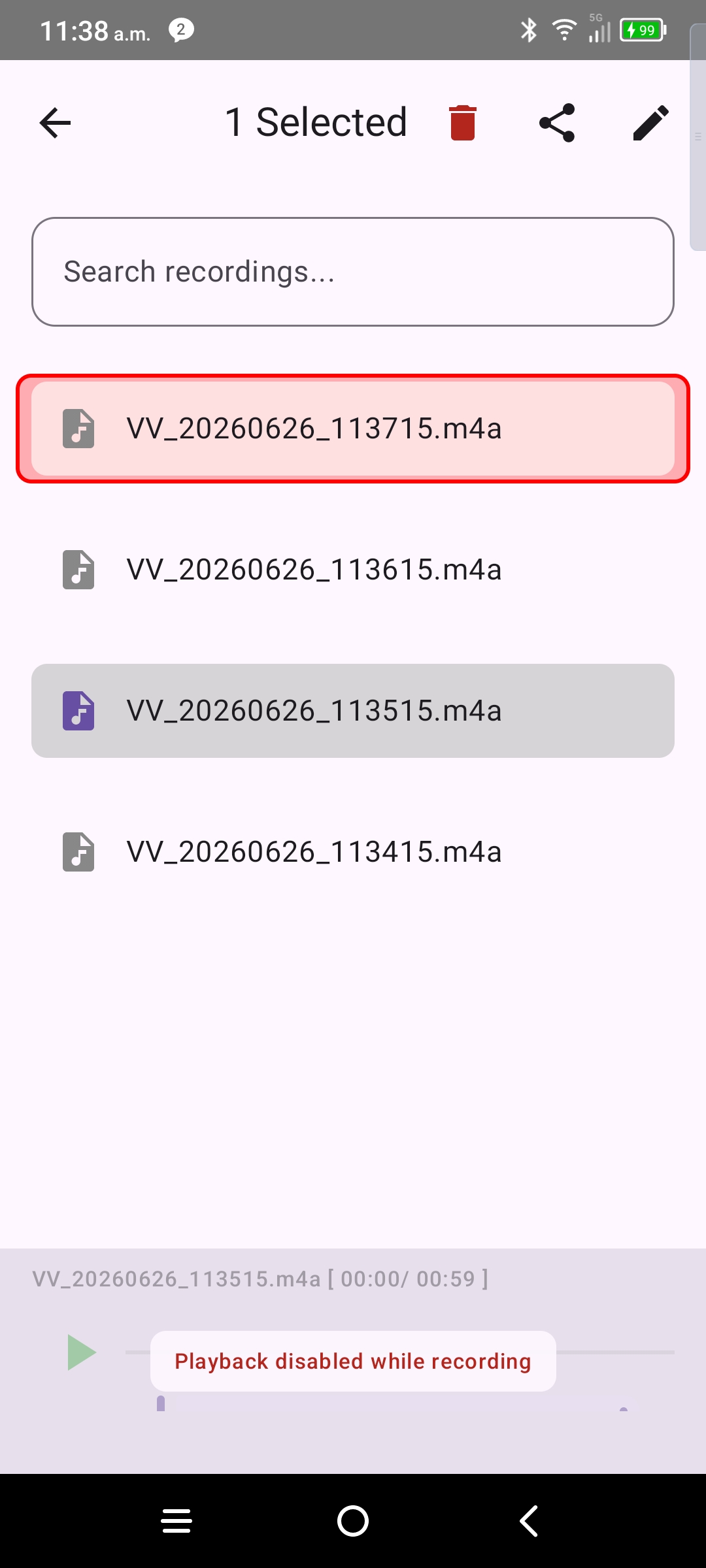
- Rename — open the rename dialog; invalid characters are rejected.
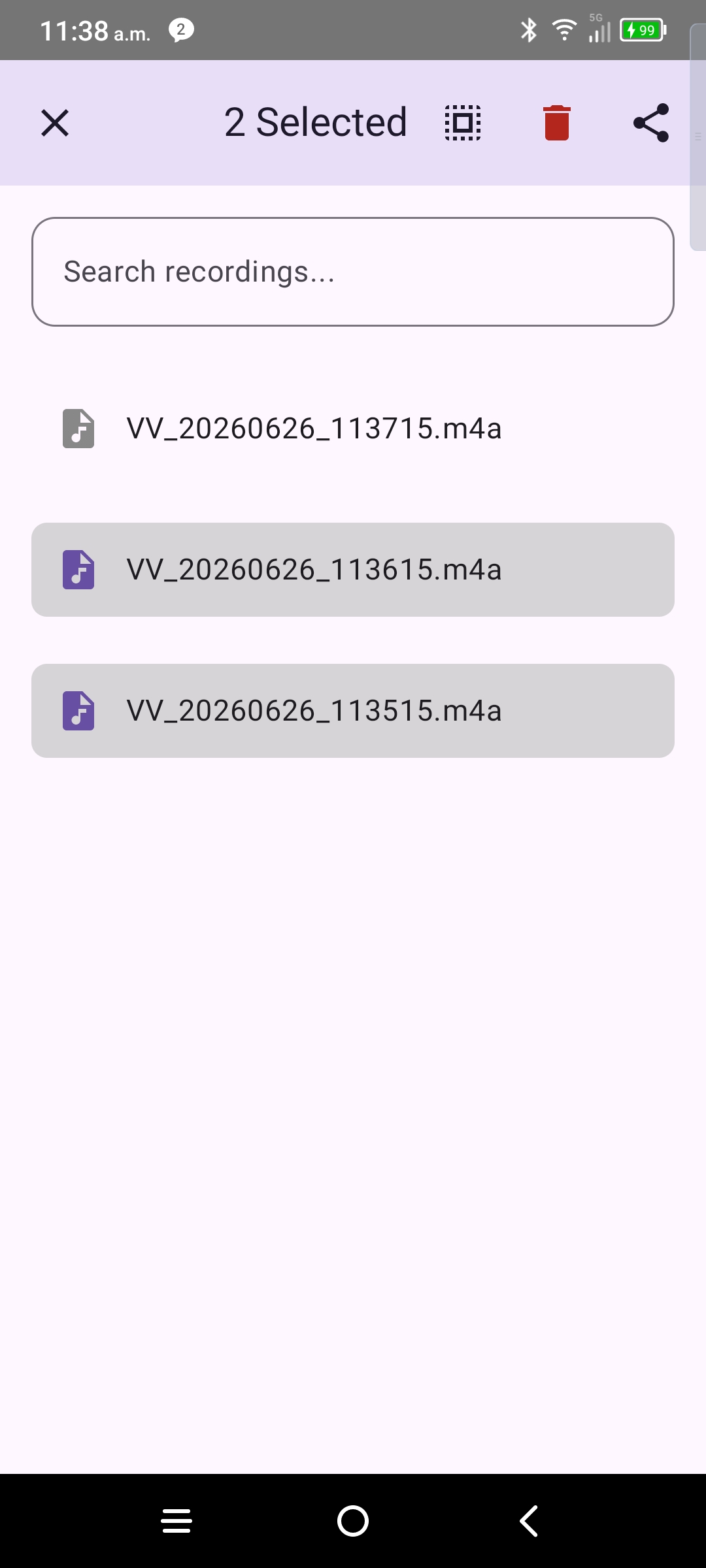
- Share — send one or more files to another app via the system share sheet.
- Delete — remove selected files; confirm in the dialog.
- Manage mode — select multiple rows for bulk share or delete.
Active recording in the list
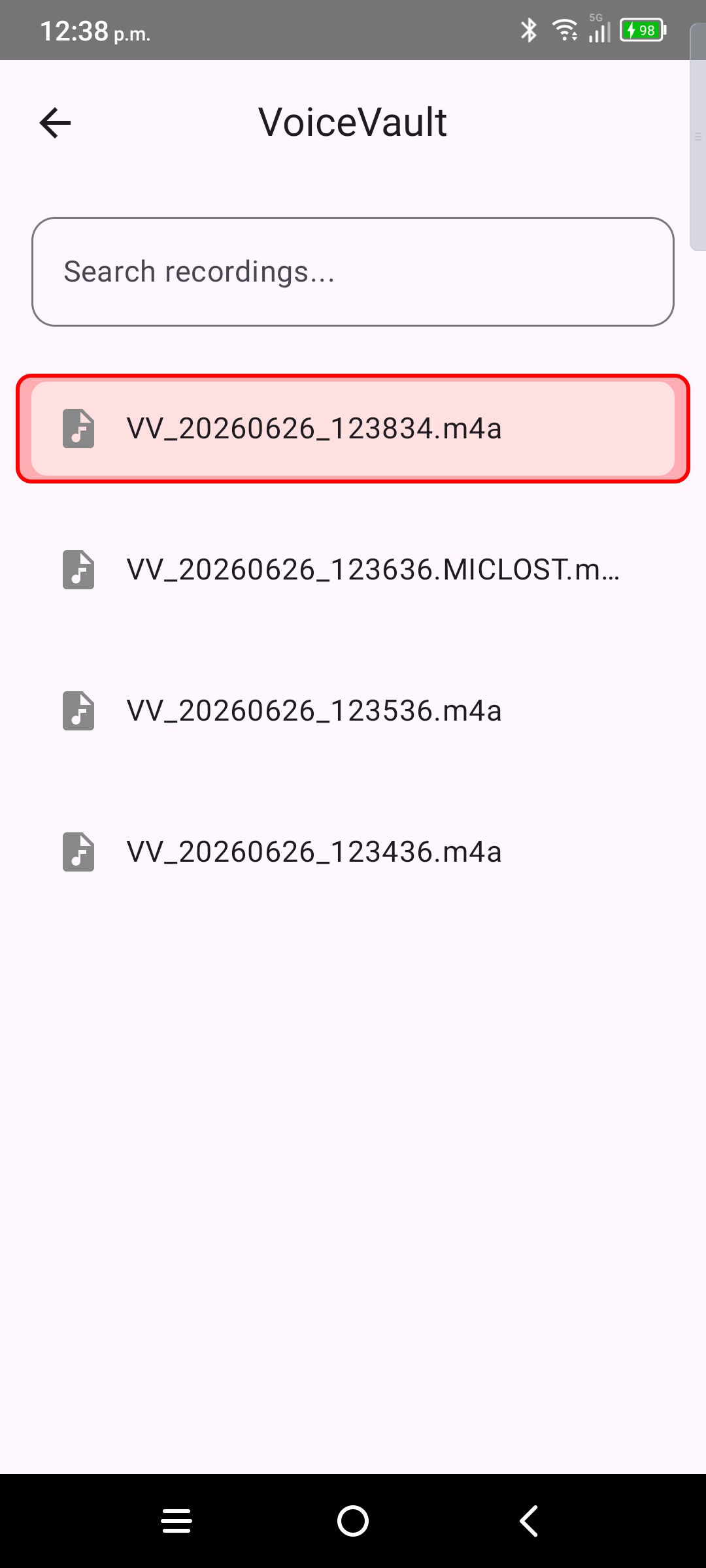
If you open the vault while still recording, the in-progress file stays pinned at the top so you can monitor elapsed time alongside finished clips.
Microphone lost files
If another app takes the microphone during the current recording, the partial file is marked MICLOST. If Auto-resume mic is On, a new MICAUTORESUME file starts when the mic is free. Those are separate recordings — VoiceVault does not stitch them. YouTube or music on the speaker is not Lost Mic. See Mic. Management.